Subscribe to our newsletter and get the latest resources sent to your inbox.

Samsung CTV Guidelines: Ensuring High-Quality Creatives
9 MIN READ
February 18, 2026
As a valued partner, representing your brand—and our clients’—at the highest standard is a top priority. To ensure consistency and quality across our collaboration, all creative assets must align with Samsung’s brand guidelines as well as those of our clients. Below are the key requirements and best practices to follow when submitting creative assets to our team.
Key Requirements for Client Submissions
To ensure edits and creatives are made in compliance with Samsung creative CTV guidelines, we kindly ask for the following documents to assist us in the creative review:
1. Required Files and Images
These files are required for all creative work at FeedMob:
- Photoshop file – PSD (editable file)
- Logo files – Illustrator or eps (editable file)
- Font files (tff/otf files)
2. Additional files: applies to request for new asset creation
If FeedMob is creating brand new assets for your campaign, the following additional files will be needed:
- Images: If FeedMob is creating net new creatives, provide a folder of high-resolution approved images for the creative (1980×1080 but preferably 3840×2160 for CTV)
- Brand Guidelines: If FeedMob is creating net new creatives, share the latest version of your brand guidelines to ensure we maintain the integrity of your visual identity (e.g., colors, fonts, logo usage)
3. IMPORTANT: Exclusion of Competitor Devices
- Brand Exclusivity: We cannot feature competitor brands or devices. Please ensure this is taken into consideration when submitting creative assets. For example, the creative should not showcase Apple devices only Android.
Important Do’s and Don’ts
Do’s
- Keep all important elements within the masthead safe zone.
- Include high quality visuals in the masthead with a clear focus or subject.
- Ensure there is enough contrast between the logo and the masthead behind it.
- Ensure harmony between copy, key visuals, and composition for a seamless UI integration.
Don’ts
- Put important elements outside of the masthead safe zone that will compete with the logo or get lost behind the UI.
- Design the masthead to be overly busy, with too many subjects, too much text, or excessive branding.
- Provide a logo that is difficult to read, lacks contrast, or includes duplicative CTA messaging.
Sizing Requirements – Discovery Masthead
1. Format & Placement
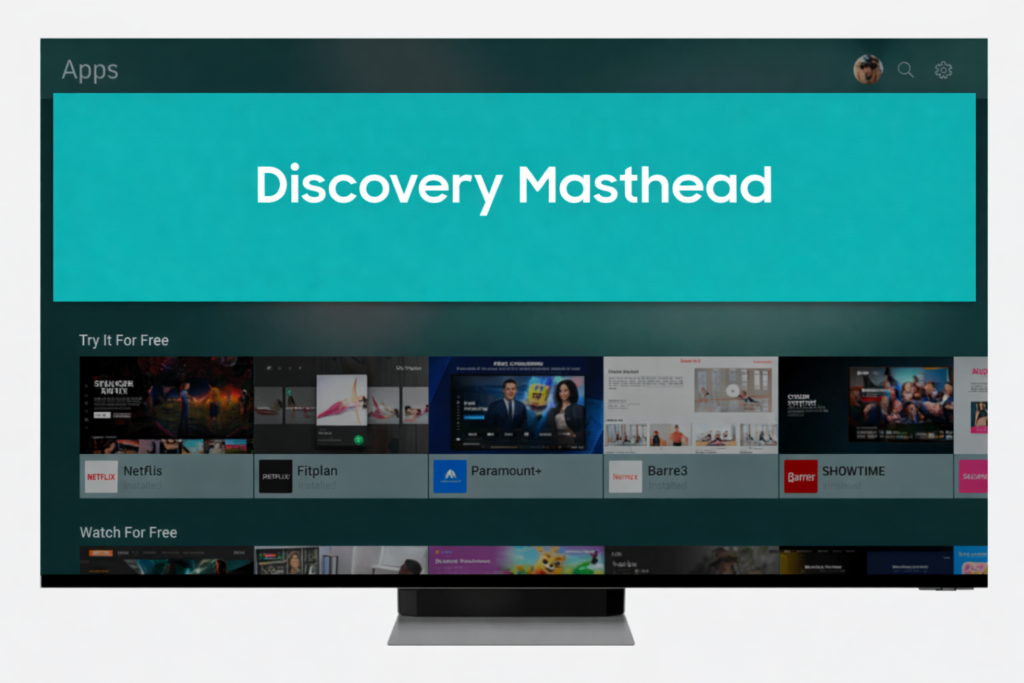
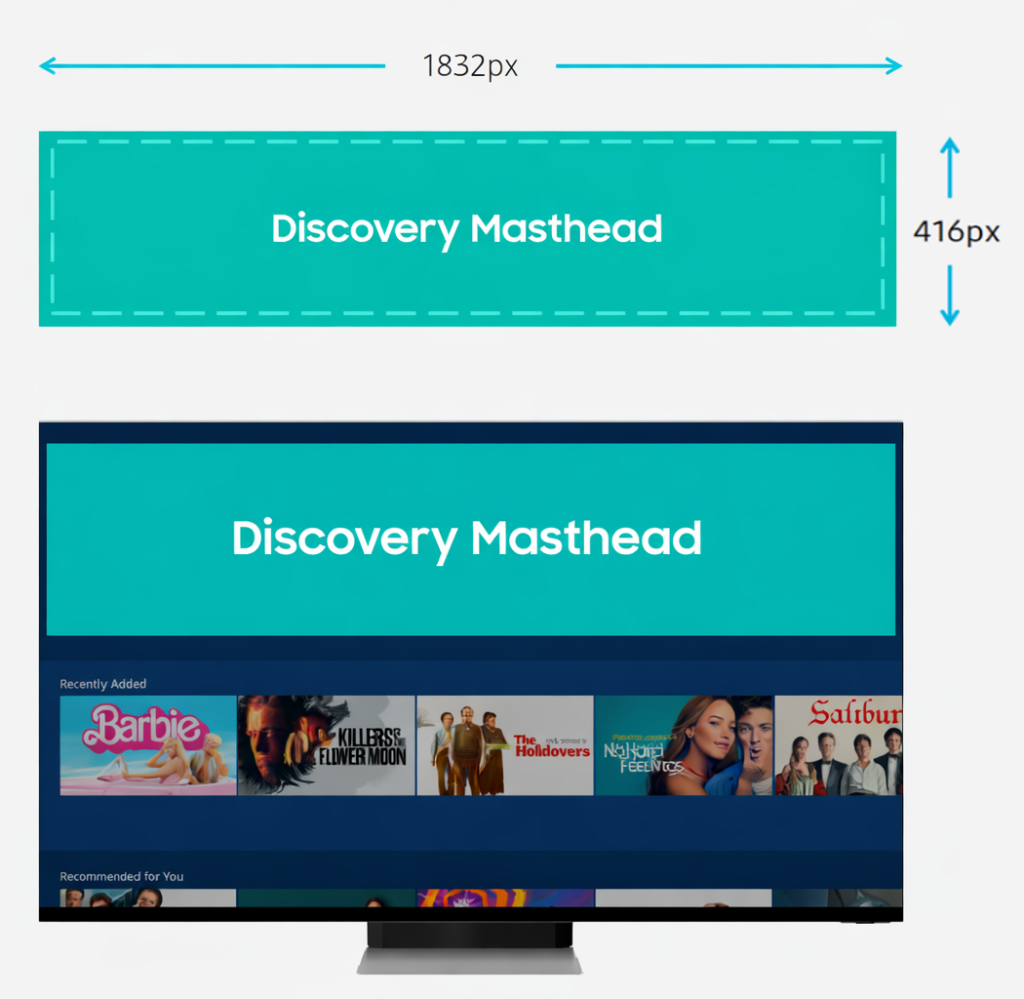
2. Discovery Masthead (Static)
- Safe zone respected: 1780 × 394 px
- Dimensions: 1832 × 416 px
- File type: JPG or PNG
- File size ≤ 450 KB
- No borders
Creative best practices
- One clear message only
- High-contrast background and text
- Large, TV-legible typography (18px minimum; larger preferred)
- Branding visible within first glance
- No small UI elements or fine detail
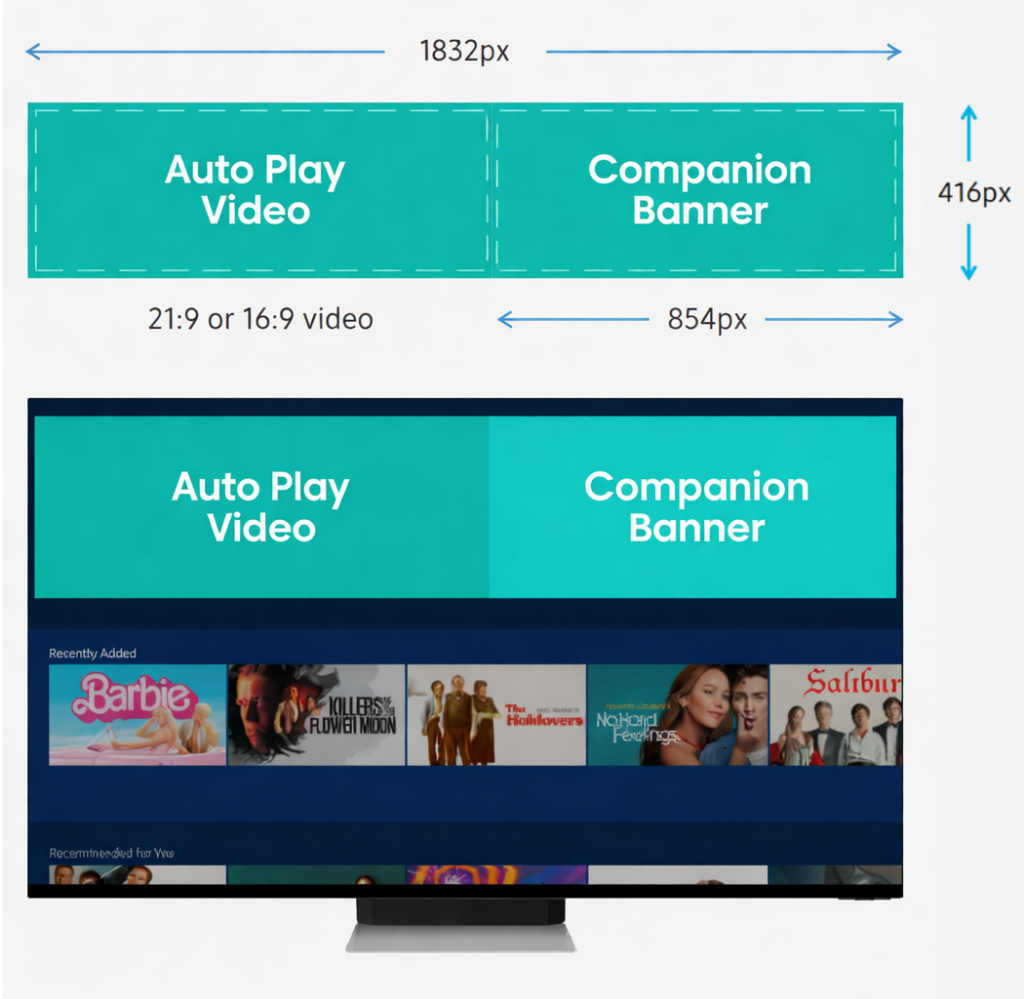
3. Auto-Play Video
- Aspect ratio:
- 21:9 (recommended)
- 16:9 (accepted; will letterbox)
- Recommended resolution: 1920 × 1080
- File type: MP4
- File size ≤ 25 MB
Creative best practices
- Visual storytelling works without sound
- Branding appears in first 2–3 seconds
- Simple compositions; slow, readable pacing
- Minimal or no on-screen text
- No critical info near edges (letterboxing safe)
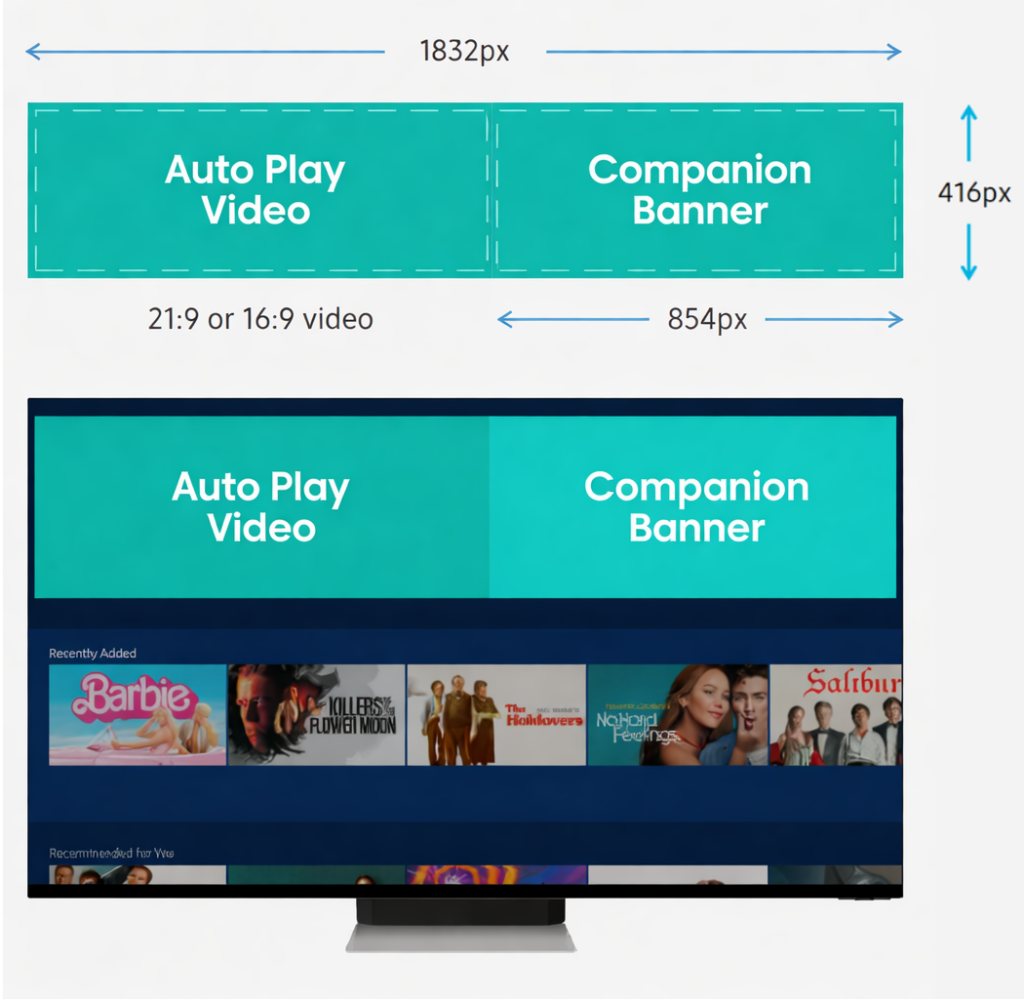
4. Companion Banner
- Dimensions: 854 × 416 px
- Safe zone: 828 × 394 px
- Minimum font size: 18px
- File type: JPG or PNG
- File size ≤ 450 KB
Creative best practices
- Reinforces video message (does not duplicate it)
- Clear brand logo present
- Primary CTA included
- Clean, uncluttered layout
- High contrast for readability
5. CTA & Interactivity
- Video title provided
- Description provided
- CTA provided (required)
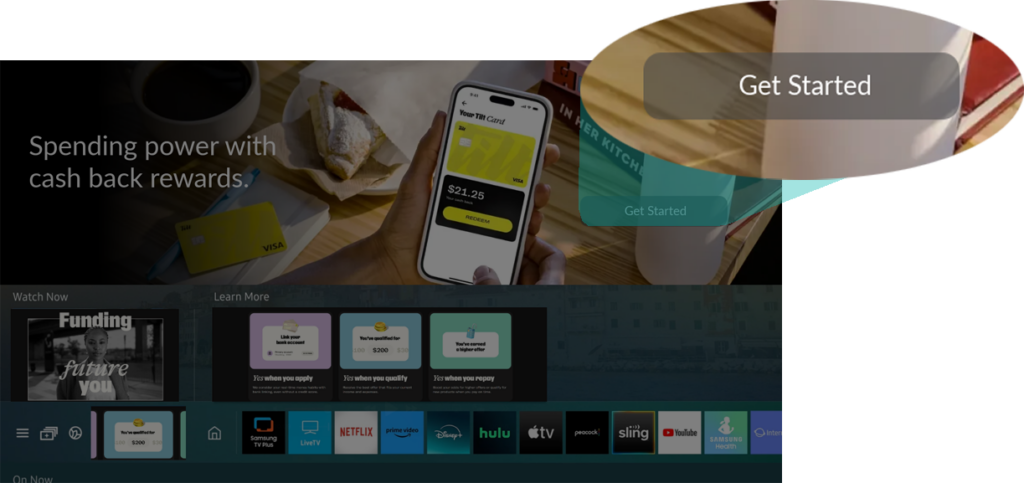
CTA best practices
- Clear action language (e.g., Watch Now, Download, Start Free Trial)
- CTA is visually obvious
- Click destination
- Full-screen video
- App
- Website
- Microsite
- STVP channel
6. Context Alignment
- ☐ Creative matches user mindset:
- Universal Guide → cinematic, content-led, discovery-driven
- Apps Store → benefit-led, functional, install-focused
- ☐ Messaging is immediately understandable from 10 feet away
Sizing Requirements – 1st Screen Plus
1. Required Core Assets
UG Preview Tile
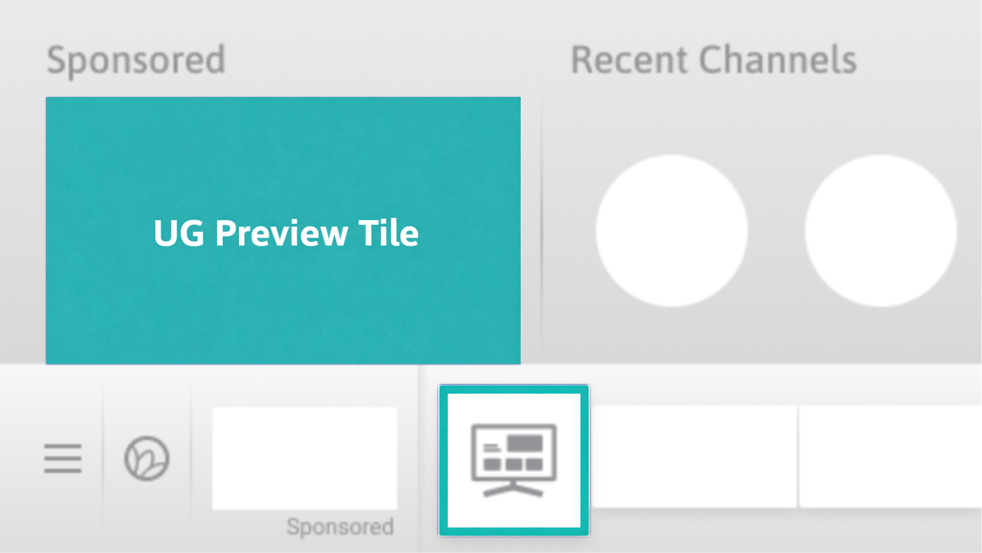
- Size: 480 × 270
- Format:
- Static image OR
- Autoplay video
- Click action required
- Impression + click trackers supported
Launcher Tile
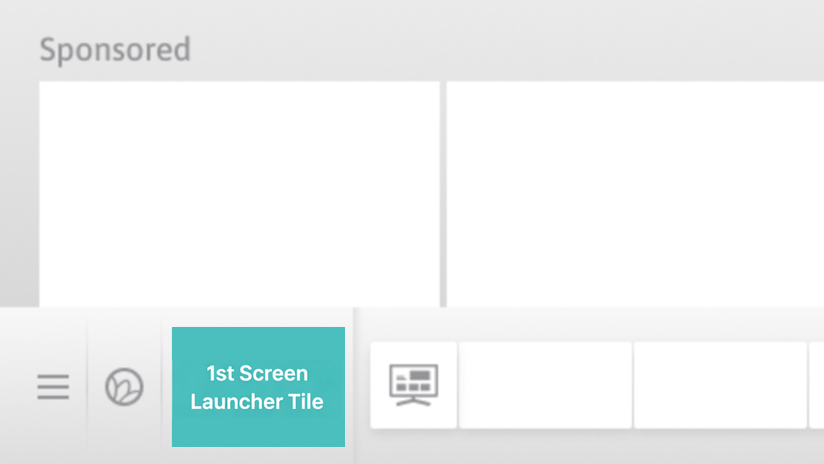
- Size: 480 × 270
- Format: Image
- Click action required
- Impression + click trackers supported
2. Optional Preview Tile Gallery (Choose Any Below)
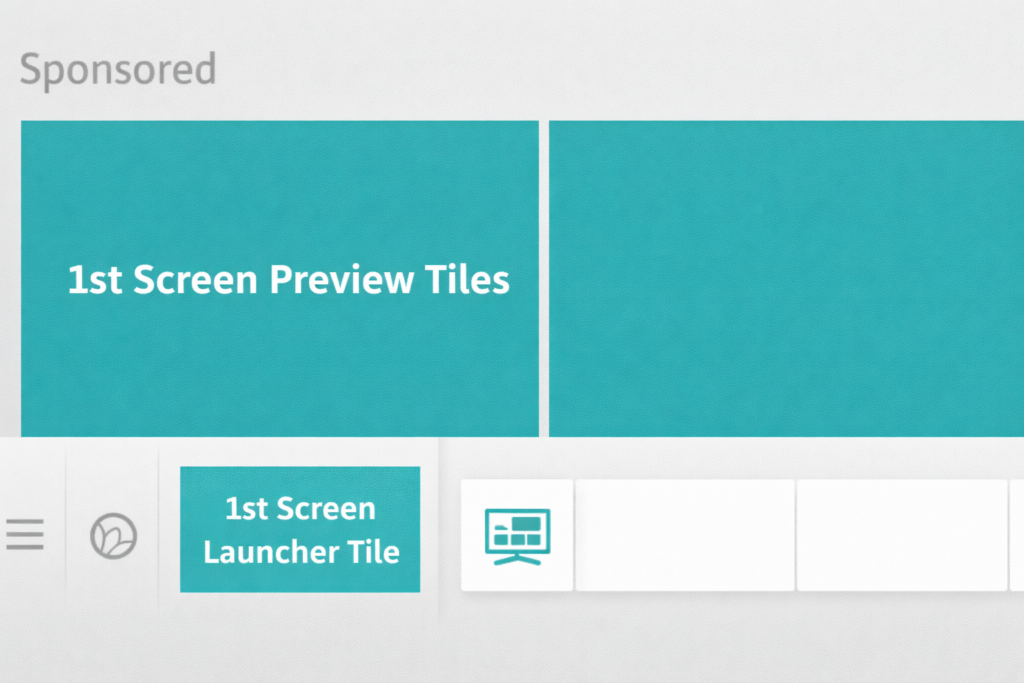
(Tiles appear together as a gallery; max limits apply)
- Extra Wide Tile
- Size: 1840 × 320
- Max: 1
- Wide Tile
- Size: 960 × 270
- Max: 2
- Rectangle Static Tile
- Size: 480 × 270
- Max: 3
- Rectangle Autoplay Video Tile
- Size: 480 × 270
- Max: 1
- Medium Rectangle Tile
- Size: 300 × 250
- Max: 3
Contact
Client Support
If needed, we are happy to walk you through the creative requirements or provide examples of well-executed FeedMob creatives. This ensures you fully understand the expectations and can produce assets that align with our standards.
Have questions about the creative process for the Samsung Galaxy Store? Contact us today.
Stay Updated.

SERVICES
RESOURCES
CONNECT

